How to Turn Voice Notes Into Text: The Complete 2026 Guide
Turn any voice note into clean text — free built-in methods, transcription apps, and how to get organized writing instead of a raw transcript.
Yash Bagal, Founder, RambleFix··10 min read
In a controlled 2016 study, researchers from Stanford, the University of Washington, and Baidu clocked English speech recognition at 161.2 words per minute against 53.46 for keyboard typing on the same phones — speech won by 3x, with a 20.4% lower error rate (Stanford News, 2016). Most people never see that advantage, because their voice notes just sit in the Voice Memos or Recorder app, unheard, waiting for the separate chore of turning them into text.
This guide covers every method that actually works in 2026: the free transcription your phone already has, when a dedicated app is worth it, and how to skip the "wall of filler words" problem entirely by getting cleaned-up writing instead of a literal transcript.
Key Takeaways
- iPhone's Voice Memos and Android's Recorder both transcribe on-device for free — no app or account needed.
- Speech is consistently faster than typing: a 2025 multi-country clinical study measured a median of 93 words per minute by voice versus 21.4 by keyboard, a 4.3x gap that narrows to about 2.5x once editing time is included (medRxiv, 2025 — cited in full below).
- A literal transcript still sounds like rambling — filler words, false starts, and all. Getting usable writing out of a voice note requires a tool built to restructure speech, not just transcribe it.
- Dedicated apps (Otter.ai, Trint) earn their keep on long recordings, background noise, or unfamiliar technical vocabulary.
- Most bad transcripts trace back to three fixable habits: mic distance, background noise, and talking too fast for the model to keep up.
Use Your Phone's Built-In Transcription (Free)
Your phone can already do this. iPhone's Voice Memos app (iOS 17 and later) generates a transcript automatically for every new recording — open a memo, tap the transcript icon, and the text appears without any setup. Android's Recorder app does the same through its automatic transcript tab, available on Pixel phones and increasingly on other Android devices running recent versions.
Both run the speech-to-text model on-device, so there's no upload delay and, on supported languages, no data leaving the phone. The tradeoff is that built-in transcription is English-first, gets shakier with heavy accents or industry jargon, and does nothing to clean up the "um, so, like" that comes out when you talk in one long stream of consciousness — it types exactly what it hears.
For clean audio without much background noise, this free option is genuinely good enough for short notes: modern on-device speech recognition routinely reaches accuracy in the mid-to-high 90% range on clear recordings, according to benchmark tracking from speech AI vendor AssemblyAI (2026). If your voice notes are quick reminders dictated in a quiet room, start here before installing anything.
Dictate Directly Instead of Recording First
The fastest workflow skips the record-then-transcribe step entirely. Instead of talking into a voice memo and converting it afterward, use a dictation keyboard (the microphone icon on the iOS and Android keyboards) or a system-wide dictation tool on Mac or Windows to turn speech into text as you go. There's no audio file to manage and no separate transcription pass — the words land in the document, email, or notes app directly.
The speed case for doing this is well established. In the Stanford/UW/Baidu study cited above, English speech recognition beat keyboard typing by 3x with a meaningfully lower error rate. A more recent, real-world test tells a similar story from a different angle: a multi-country study of clinicians dictating medical notes across 72 accents (medRxiv, May 2025) found a median voice-dictation speed of 93 words per minute against 21.4 for typing — a 4.3x raw advantage that settles to roughly 2.5x (55.4 WPM) once the time spent fixing errors is factored in.
That 21.4 WPM keyboard figure comes from clinicians typing structured medical notes, a slower and more specialized task than everyday typing. For context on ordinary typing speed: an Aalto University and University of Cambridge analysis of 136 million keystrokes from 168,000 volunteers found an average typing speed of 52 words per minute (2018) — meaningfully faster than the clinical study's typing baseline, yet still well short of the 93 WPM voice-dictation speed measured in that same study.
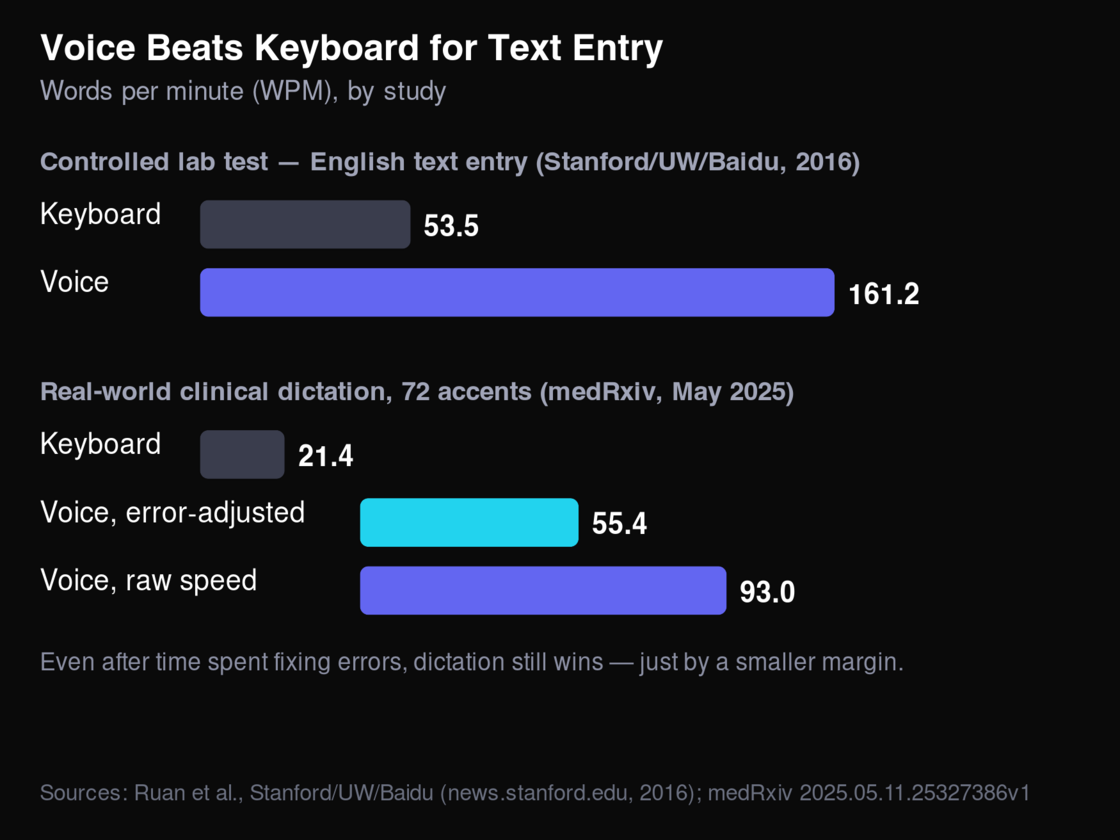
Voice consistently outpaces keyboard entry, in both a controlled lab test and real-world clinical use. Sources: Stanford/UW/Baidu (news.stanford.edu, 2016); medRxiv, May 2025.
On a Mac, system-wide dictation works the same way in any app — Mail, Slack, a Google Doc — without switching tools. Our guide to dictating on Mac covers turning it on and fixing the setup issues that trip people up.
Use a Dedicated App When Built-In Tools Fall Short
Built-in transcription starts to strain in three situations: background noise, long recordings (meetings, lectures, hour-long brainstorms), and technical vocabulary the on-device model doesn't recognize. That's where a dedicated transcription app earns its cost. Tools like Otter.ai and Trint add speaker labels, timestamps, searchable archives across every note you've ever recorded, and support for uploading existing audio files (MP3, WAV, M4A) instead of only live recording.
The tradeoff is straightforward: most dedicated apps run in the cloud, so the audio leaves your device, and the better ones charge a monthly fee once you're past a free tier's minute limit. If your only pain point is occasional background noise on an otherwise short note, it's worth trying the built-in option first — the dedicated app is the upgrade for volume and complexity, not a universal replacement.
Turn a Rambling Voice Note Into Clean, Structured Text
Here's the problem none of the tools above solve: a literal transcript of a rambling voice note is still a rambling transcript. If you talked through a client update by circling back twice, restarting a sentence three times, and trailing off mid-thought, that's exactly what you get back, filler words included. Transcription answers "what did I say." It doesn't answer "what did I mean."
That distinction matters more than it sounds — see why voice notes aren't the problem, the cleanup is for a closer look at why word-for-word accuracy alone doesn't get you to usable writing. A transcript is a record; usable writing is something you can send. Getting from one to the other means restructuring the ramble into a real paragraph, not just typing it out verbatim — cutting the false starts, reordering thoughts into a logical sequence, and tightening loose phrasing into something a reader wouldn't know was dictated.
Raw transcript: "So the thing about the Q3 numbers, I mean, they're okay, not great, but okay, and — actually let me back up — the main issue is really just the churn number, that's what's dragging things down, not the new signups which are actually fine, better than fine, so, yeah, churn is the story."
Cleaned up: "The Q3 numbers are okay, not great. New signups are actually strong — the real issue is churn, and that's what's dragging the overall picture down."
That's the gap a voice-to-writing tool is built for: something that turns rambling speech into polished writing as you talk, rather than handing back a transcript you still have to edit yourself. For a closer look at how that compares to a transcript-first tool, see our comparison with AudioPen.
Fix the Habits That Wreck Accuracy
Most bad transcripts, whether from a built-in tool or a paid app, come down to three fixable habits rather than a weak model.
Mic distance. Speech recognition degrades fast once the phone or laptop mic is more than arm's length away, especially in a room with any echo. Keep the device close, or use headphones with a built-in mic for consistent input.
Background noise. Traffic, other conversations, and even a running fan all compete with your voice for the model's attention. A quieter room does more for accuracy than switching to a "better" transcription app.
Talking too fast. Speech models process in short bursts; running sentences together without pauses increases the chance of dropped or garbled words, especially with unfamiliar names or technical terms. A brief pause between thoughts gives the model a natural boundary to work with, and makes it easier to go back and fix a name or term after the fact if it gets mistranscribed.
Organize and Search Your Converted Notes
Converting a voice note to text is only half the job if you can't find it again later. Both Voice Memos and Recorder support searching transcript text directly inside the app, so a note titled "Untitled" from three weeks ago is still findable by a phrase you remember saying. If you're routing transcripts into a separate notes app, a consistent naming convention — date plus a two- or three-word topic — beats relying on search alone, especially once you have dozens of voice-note-derived documents piling up.
Which Method Should You Use?
The right method depends on what you're starting from and what you need back — a searchable record, a clean transcript, or writing you can send as-is.
- Built-in phone transcription — free, no account needed. Best for short, clear recordings in quiet rooms. What you get back: a literal transcript, filler words included.
- Dedicated app (Otter.ai, Trint) — free tier, then a paid plan. Best for long recordings, background noise, or technical vocabulary. What you get back: a more accurate transcript, plus search and speaker labels.
- Voice-to-writing (RambleFix) — free to try. Best for rambling notes you need to send or publish as text. What you get back: structured, polished writing, not a raw transcript.
Frequently Asked Questions
How do I convert a voice note to text for free?
iPhone's Voice Memos and Android's Recorder both transcribe recordings on-device at no cost, with no app install or account required.
Can iPhone voice memos be converted to text automatically?
Yes. iOS 17 and later automatically generate a transcript for new recordings inside the Voice Memos app, viewable by tapping the transcript icon on any memo.
What's the most accurate app for turning voice notes into text?
Accuracy depends more on audio quality than the specific app. Modern speech recognition tools reach accuracy in the mid-to-high 90% range on clear, quiet recordings, per AssemblyAI's benchmark tracking cited above; dedicated apps generally hold up better than built-in tools on noisy audio, accents, or technical vocabulary.
Do voice-to-text apps work offline?
Some do. Apple's on-device dictation and transcription work offline for supported languages. Most cloud-based apps, including Otter.ai and Trint, require an internet connection to process audio.
How do I turn a messy voice note into a clean, organized note?
Use a tool built for voice-to-writing rather than plain transcription. Instead of typing out filler words and false starts verbatim, it restructures rambling speech into readable prose — the difference between a transcript and something you could actually send.
Getting From Voice Note to Usable Text
Built-in transcription on your phone is free and good enough for short, clear recordings. A dedicated app is worth the cost once background noise, long recordings, or technical vocabulary start breaking accuracy. And if your voice notes come out as rambling stream-of-consciousness no matter which tool transcribes them, the fix isn't a better transcript — it's a tool built to turn what you said into what you meant.
Try RambleFix free to turn rambling voice notes straight into clean, structured writing.
Written by the RambleFix Editorial Team, which covers voice-to-text tools and dictation workflows for people who write for a living.