Voice Typing: The Complete 2026 Guide
How to use voice typing on Windows, Mac, iPhone, Android and Google Docs, how fast and accurate it really is, and what to do when it stops working.
Yash Bagal, Founder, RambleFix··Updated ·15 min read
Voice typing is built into every device you already own, and it's free. Press one key on Windows, tap the microphone on your phone keyboard, or open a menu in Google Docs, and your words appear as you say them.
Most people have tried it once, hit a snag — nothing happened, or the punctuation came out wrong — and gone back to the keyboard. This guide fixes that. It covers how to turn voice typing on for each platform, what it's good at, where it falls down, and the handful of settings that make the difference between "gimmick" and "how I write now".
Key Takeaways
- Voice typing is on by default or one toggle away on Windows (
Win + H), Mac, iPhone, Android and Google Docs. There is nothing to install. - Speaking is several times faster than typing. A Stanford lab test found speech recognition about 3× faster than typing on a phone (Stanford Engineering, 2016). A 2025 study of clinicians measured a median 93 words per minute by voice against 21.4 by keyboard, or about 2.5× faster once error-fixing time is counted (medRxiv preprint, May 2025).
- Accuracy depends on your audio more than your software: 95–98% word accuracy on clean recordings, 70–85% in a noisy room (AssemblyAI, July 2026).
- When voice typing isn't working, the cause is almost always one of five things: the cursor isn't in a text field, the microphone is blocked, the feature is switched off, you're offline on a tool that needs the internet, or you're using voice commands in a language they don't support.
Jump to your platform: Windows · Mac · iPhone · Android · Google Docs · Speed and accuracy · Not working?
What Is Voice Typing?
Voice typing means speaking into a microphone and having the words typed into whatever text field you're using — an email, a document, a chat box — in real time. Your operating system or browser listens, converts speech to text, and inserts it at the cursor, exactly as if you'd typed it.
It's worth separating three things that get lumped together:
- Voice typing (dictation) puts words into a text field live, as you speak. This is what the guide covers.
- Transcription turns an existing recording into text after the fact. If you have a voice memo you want as text, that's a different job — see our guide to turning a voice note into text.
- Voice control lets you operate the device by voice ("open Mail", "click Send"). Some voice typing tools include a few editing commands, but they aren't full voice control.
Every major platform ships voice typing for free. The paid tools exist for a different reason, covered near the end: they clean up what you said rather than typing it word for word.
Voice Typing on Windows (Win + H)
Put your cursor in any text field and press Windows key + H. A small voice typing panel appears; click the microphone and your speech is typed where the cursor is.
According to Microsoft's guide, you need three things: an internet connection, a working microphone, and your cursor in a text box. Voice typing uses Microsoft's online speech recognition service, which is why the connection is required. It works on both Windows 10 and Windows 11.
Things that make it noticeably better:
- Turn on automatic punctuation. Click the gear icon on the voice typing panel and enable it; Windows then inserts commas and periods based on how you speak, so you don't have to say "comma".
- Use the commands. "Delete that", "Select that", "Press Enter" and "Undo that" all work while the panel is open. "Stop listening" ends the session, as does pressing
Win + Hagain or clicking the microphone. - It works in Word too.
Win + Htypes into any app with a text box, so the same shortcut covers Word, Outlook, your browser and Notepad.
The internet requirement is the main catch. On a plane or a bad connection, Windows voice typing won't start.
Voice Typing on Mac
Apple calls it Dictation. Turn it on once under Apple menu → System Settings → Keyboard → Dictation, then start it from the Microphone key on the function row, the dictation keyboard shortcut you've set, or Edit → Start Dictation in most apps (Apple, Mac User Guide).
Two details set the Mac apart:
- No time limit. Apple's guide is explicit that you can dictate text of any length without a timeout. Dictation stops on its own after 30 seconds of silence, or when you press Escape.
- On-device processing. For general text dictation, your audio can be processed on the Mac rather than sent to Apple's servers; the Keyboard settings pane shows whether that's the case for your language. Dictation into a search box may still use servers.
Auto-punctuation is on by default in supported languages and can be switched off in the same settings pane. Our guide to how to dictate on Mac covers the shortcut options and the usual snags.
Voice Typing on iPhone
Tap the microphone key on the onscreen keyboard and start talking. The keyboard stays open while you dictate, so you can switch between voice and touch mid-sentence — a small thing that matters a lot when a name comes out wrong (Apple, iPhone User Guide).
If there's no microphone key, go to Settings → General → Keyboard and turn on Enable Dictation.
What Apple's documentation confirms:
- Dictation is processed on the iPhone in many languages, and no internet connection is required. Text dictated into a search field may still be sent to the search engine.
- Punctuation is automatic in supported languages (commas, periods, question marks). You can also say the punctuation by name, or turn auto-punctuation off under the same Keyboard settings.
- Editing by voice works. Say "select" or "delete" followed by the phrase, "new paragraph" for a line break, or spell a word out letter by letter. "Undo" reverses the last command.
- It stops after 30 seconds of silence, when you tap the microphone again, or when you say "Stop dictation".
One caveat from the same page: Apple warns that cellular data charges can apply. Read that as "on-device covers many languages, not all of them" — if yours isn't supported on the device, dictation goes through Apple's servers.
If what you have is a recording rather than live speech, the iPhone route is different: record in Voice Memos and transcribe afterwards, which we cover in turning a voice note into text.
Voice Typing on Android
On an Android phone with Gboard — Google's keyboard, which ships on Pixel and many other Android phones — tap a text field, then tap the microphone at the top of the keyboard and say what you want written (Google, Gboard Help).
Gboard expects spoken punctuation: say "period", "comma", "question mark", "new line" or "new paragraph". Google notes that punctuation might not be available in every language, and that some steps need Android 7.0 or later.
Samsung phones ship their own keyboard with its own voice input. The microphone sits in a similar place and the idea is the same, but the exact behavior and commands differ, so treat Gboard as the reference if you want consistency across devices.
Voice Typing in Google Docs
Open a document in the latest Chrome, Edge or Safari and choose Tools → Voice typing, or press Ctrl/⌘ + Shift + S in Chrome. A microphone box appears; click it and speak, click again to stop (Google Docs Editors Help). Unlike the other platforms, your browser does the speech recognition, not Docs — which is why the browser list matters, and why the menu is greyed out in Firefox or on a work account where an administrator has switched it off.
Dictation works in 100+ languages. Punctuation is spoken ("period", "comma", "new paragraph"), and the editing commands ("select paragraph", "apply heading 2") are English-only. The Docs mobile app has no Voice typing menu; use the keyboard microphone described in the iPhone and Android sections.
For the full command list, the Slides speaker-notes option, and the fixes when it's greyed out or silent, see our guide to voice typing in Google Docs.
How Fast and How Accurate Is Voice Typing, Really?
Roughly three to four times faster than typing before you fix mistakes, about 2.5× after, and accurate to within a few words per hundred on clean audio — with a steep drop-off when conditions get worse.
Speed
A Stanford, University of Washington and Baidu study had 32 participants enter text by speech and by iPhone keyboard. For English, speech recognition was three times faster than typing, with a 20.4% lower error rate (Stanford Engineering, August 2016).
A larger and more recent study points the same way. Researchers measured over 1,000 clinicians across 60+ hospitals in 15+ low- and middle-income countries, covering 72 accents. Median keyboard speed was 21.4 words per minute; median dictation speed was 93 words per minute, a 4.3× difference. Once estimated editing time is included, dictation settles at 55.42 words per minute — still about 2.5× faster than typing (medRxiv preprint, posted 13 May 2025).
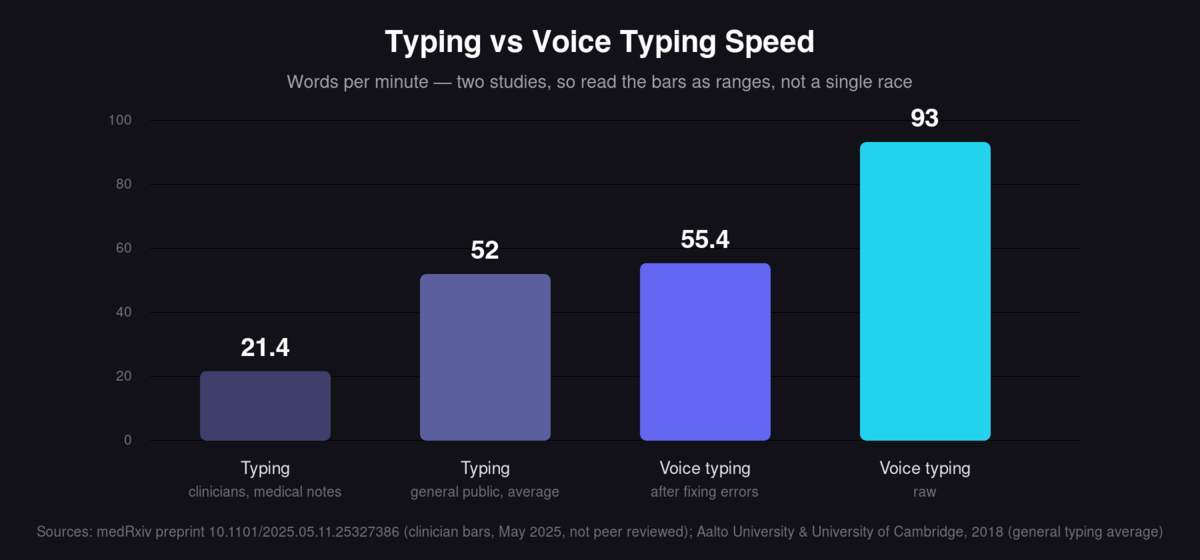
Words per minute across two studies. Typing: 21.4 (clinicians writing medical notes) and 52 (general public average). Voice typing: 55.4 after fixing errors and 93 raw. Sources: medRxiv preprint, May 2025, not peer reviewed; Aalto University and University of Cambridge, 2018.
Two caveats. The clinician study is a preprint, so it hasn't completed peer review, and its participants were typing structured medical notes — a slower task than everyday writing. For context, an Aalto University and University of Cambridge analysis of 136 million keystrokes from 168,000 volunteers found an average typing speed of 52 words per minute (Aalto University, 2018). Voice typing's raw speed still beats that comfortably; its error-adjusted speed is roughly level with it. The gain is real, but it depends heavily on how much fixing you have to do afterwards — a point we come back to below.
Accuracy
The best speech-to-text models in 2026 reach 95–98% word accuracy on clean audio. That falls to 85–92% on video calls, 80–88% on phone audio, 75–90% for heavily accented speech, and 70–85% in noisy environments (AssemblyAI, July 2026).
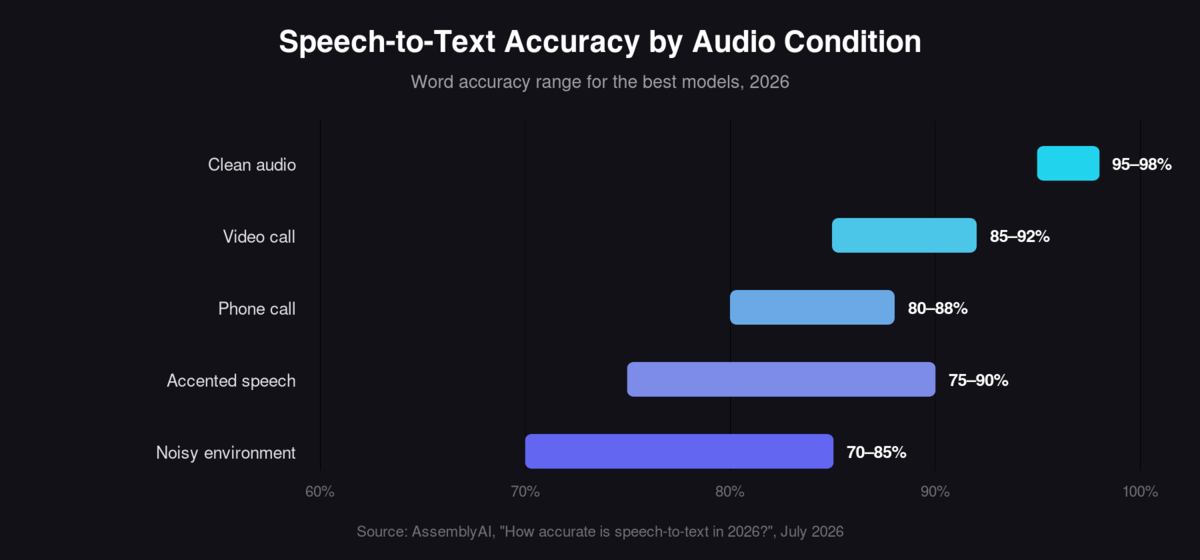
Word accuracy by condition: clean audio 95–98%, video call 85–92%, phone call 80–88%, accented speech 75–90%, noisy environment 70–85%. Source: AssemblyAI, July 2026.
Those are vendor-published benchmarks, so treat them as directional. The practical lesson holds regardless: a 3% error rate is one wrong word every few sentences, while a 20% error rate is one in five, and the difference between them is mostly your microphone and your room, not which tool you picked.
Voice Typing Not Working? The Five Usual Causes
When voice typing does nothing, or types the wrong thing, check these in order.
- The cursor isn't in a text field. On Windows this is the first thing to check:
Win + Hneeds a text box with focus. Click into one and try again. - The microphone is blocked. On Mac and iPhone, check the app has microphone permission in Privacy settings. In a browser, check the site permissions next to the address bar. On Windows, check Settings → Privacy & security → Microphone.
- The feature is switched off. On iPhone, Settings → General → Keyboard → Enable Dictation. On Mac, System Settings → Keyboard → Dictation. In Google Docs on a work or school account, an administrator can disable it.
- You're offline on a tool that needs the internet. Windows voice typing requires a connection. Google Docs voice typing depends on your browser's speech service. Mac and iPhone can work offline for supported languages.
- You're using commands in an unsupported language. Google Docs commands need both account and document language set to English. Gboard punctuation isn't available in every language.
If words are coming out wrong rather than not at all, that's the accuracy section above: move closer to the microphone, cut background noise, and slow down slightly on names and technical terms.
When Built-In Voice Typing Is Not Enough
The free tools are good at one thing: typing what you said. That's also their limit.
Say this into any of them:
so the thing about the pricing, um, we could do three tiers, actually no, two is better because people get confused and just pick the middle one anyway
and that's exactly what appears — filler words, false starts and all. A tool built to clean up speech rather than transcribe it returns what you meant instead:
On pricing, two tiers is the better call. With three, people get confused and default to the middle option anyway.
For a quick text or a search query the difference doesn't matter. For an email, a document or anything you'd rather not re-read and rewrite, it does — the cleanup is the real problem, not the capture.
Three situations push people past the built-in tools:
- Long-form writing. Dictating a full page is easy; editing a full page of verbatim speech is not. That editing time is what shrinks the 4.3× speed advantage to 2.5× in the clinician study above.
- Cross-app consistency. Windows, Mac, iPhone, Gboard and Google Docs each behave a little differently — different commands, different punctuation rules. If you write across all of them, the inconsistency adds up.
- Cleanup. Some tools now go a step beyond transcription and restructure rambling speech into finished prose as you talk. RambleFix does this system-wide on the Mac and on the web and iPhone; we've compared it with AudioPen, a transcript-first tool, so you can see where each fits.
The rule of thumb: start with what's built in. It costs nothing and covers most short writing. Move to a dedicated tool only when you notice the editing pass is eating the time you saved.
Frequently Asked Questions
Is voice typing free?
Yes, on every major platform. Windows voice typing, Mac and iPhone Dictation, Gboard on Android and Google Docs voice typing are all included at no cost. Paid tools add cleanup, cross-app consistency or higher accuracy on difficult audio, not basic dictation.
How do I turn on voice typing on Windows 11?
Click into any text field and press Win + H; there's no separate switch to flip. Microsoft's requirements are an internet connection, a working microphone and the cursor in a text box. If the panel appears but nothing is typed, click the microphone button on it to start listening.
Does Google voice typing work offline?
On Android, Gboard's documentation doesn't promise offline voice typing, so treat it as needing a connection unless your device says otherwise. Google Docs voice typing runs through your browser's speech service and is designed for use online. For guaranteed offline dictation, Mac and iPhone process supported languages on the device.
Can I use voice typing in Microsoft Word?
Yes. On Windows, press Win + H with the cursor anywhere in the document and speak; it works in Word the same way it does in any text field. Mac Dictation works in Word for Mac through the same Microphone key or Edit menu.
Which voice typing is the most accurate?
On clean audio the leading systems are close, at 95–98% word accuracy according to AssemblyAI's 2026 benchmarks. The gap opens in poor conditions: noisy rooms, phone-quality audio and heavy accents can cost anywhere from 10 to nearly 30 points. Improving your microphone and environment will do more for accuracy than switching between the built-in tools.
Can I use voice typing in Gmail and other web apps?
Yes, through the operating system rather than the site. On Windows, Win + H types into any text box in the browser; on a Mac, the Microphone key or Edit → Start Dictation does the same; on a phone, the keyboard microphone works in any app. Only Google Docs and Slides have a voice typing feature of their own.
The Short Version
- Windows:
Win + H. Needs the internet. Turn on automatic punctuation in the panel's settings. - Mac: Microphone key or Edit → Start Dictation. No time limit, on-device for supported languages.
- iPhone: microphone key on the keyboard. On-device, works offline, punctuates automatically.
- Android: microphone on the Gboard keyboard. Say your punctuation.
- Google Docs: Tools → Voice typing, in Chrome, Edge or Safari. English-only commands.
- Not working? Cursor, mic permission, feature switch, connection, language — in that order.
Voice typing is faster than the keyboard for almost everyone, and the built-in versions are good enough to start today. The only question worth spending money on is whether you want your words typed, or your thoughts written — and you can find out for free by trying RambleFix.
Related Guides
- Voice typing in Google Docs — setup, the shortcut, the commands worth learning, and the fixes when it stops working.
- How to dictate on Mac — the full setup, shortcut options and the fixes for Apple's Dictation.
- How to turn voice notes into text — when you have a recording rather than live speech.
- Voice notes aren't the problem. The cleanup is. — why a perfect transcript still isn't writing.
- RambleFix vs AudioPen — two approaches to turning speech into text, compared on specifics.