Voice Typing in Google Docs: Setup, Commands, and Fixes
Turn on voice typing in Google Docs, learn the shortcut and commands, use it on your phone, and fix it when it's greyed out or silent.
Yash Bagal, Founder, RambleFix··12 min read
Google Docs has voice typing built in. Open a document in Chrome, Edge or Safari, choose Tools → Voice typing, click the microphone, and talk. There is nothing to install and nothing to pay for.
Google calls the feature voice typing; most people search for it as Google Docs speech to text, or Google Docs dictation. Whatever you call it, the setup works for most people the first time. What trips people up is everything after: the punctuation you have to say out loud, the commands that only work in English, the menu that's greyed out on a work account, and the discovery that the phone app doesn't have the feature at all. This guide covers how to use voice typing in Google Docs end to end, using Google's own documentation as the source for every step.
Key Takeaways
- Turn it on with Tools → Voice typing or, in Chrome, Ctrl + Shift + S (⌘ + Shift + S on a Mac). It needs the latest Chrome, Edge or Safari and a working microphone — your browser does the speech recognition, not Google.
- Dictation works in more than 100 languages and accents. Voice commands work only in English, and only when both your account language and the document language are set to English.
- Google documents punctuation as spoken commands only: "period", "comma", "question mark", "new paragraph". Nothing is inserted for you.
- On a phone there is no Voice typing menu. Use the microphone on your keyboard instead — Gboard on Android, Dictation on iPhone.
- If it's greyed out or silent, check in this order: browser, microphone, account restrictions, room noise.
Sourced throughout from Google Docs Editors Help and Google Docs keyboard shortcuts; specifics below.
Jump to: Turn it on · Punctuation · Commands · On Android and iPhone · Not working?
How to Turn On Voice Typing in Google Docs
- Open a document in Google Docs in the latest version of Chrome, Edge or Safari.
- Click Tools → Voice typing, or press Ctrl + Shift + S (Windows and ChromeOS) or ⌘ + Shift + S (Mac). A small microphone box appears.
- Click the microphone. If the browser asks for permission to use your microphone, allow it.
- Speak clearly at a normal volume and pace. Your words appear at the cursor.
- Click the microphone again to stop, or say "Stop listening."
Two things Google's documentation makes explicit and most guides skip (Google Docs Editors Help):
- Your browser does the transcribing. When you turn voice typing on, the web browser controls the speech-to-text service, decides how your speech is processed, and sends the resulting text to Docs. That's why the browser list matters and why quality can differ between Chrome and Safari on the same machine.
- The microphone has to be on and working at the system level first. Google's step one is literally "turn on your microphone" — in System Settings on a Mac, the Control Panel on a PC — before Docs can use it.
The keyboard shortcut is listed by Google as "available in Chrome browsers", under both the Windows and the ChromeOS shortcut lists (Google Docs keyboard shortcuts); in Edge and Safari, use the Tools menu.
Voice typing also covers Google Slides, for speaker notes and captions: Tools → Dictate speaker notes opens the notes pane with the same microphone box. Voice commands, covered below, don't work in Slides speaker notes.
How to Add Punctuation With Your Voice
Google documents punctuation only as spoken commands — there is no automatic punctuation in Docs' own feature. Say the mark you want:
| Say | You get |
|---|---|
| "Period" | . |
| "Comma" | , |
| "Question mark" | ? |
| "Exclamation point" | ! |
| "New line" | a line break |
| "New paragraph" | a new paragraph |
Source: Google Docs Editors Help.
So the sentence So I think we should move the deadline, but only if the client agrees. is spoken as: "so I think we should move the deadline comma but only if the client agrees period".
Google notes that punctuation might not be available in every language. This is the biggest difference from Mac Dictation and iPhone Dictation, which insert commas and periods automatically in supported languages. It's also the adjustment that makes Docs voice typing feel clunky for the first ten minutes: you're narrating structure, not just talking.
What Voice Commands Can You Use in Google Docs?
Once the microphone is on, you can select, edit and format by voice. Google publishes well over a hundred commands; these are the ones that cover day-to-day writing (Google Docs Editors Help):
| To do this | Say |
|---|---|
| Select text | "Select word", "Select paragraph", "Select next 3 words", "Select all", "Deselect" |
| Delete | "Delete" (Google's note: on its own, this deletes the word before the cursor), "Delete last word", "Delete [phrase]" |
| Format | "Bold", "Italics", "Underline", "Remove formatting" |
| Structure | "Apply heading 2", "Apply normal text", "Create bulleted list", "Insert bullet" |
| Size and alignment | "Font size 14", "Make bigger", "Align center", "Line spacing double" |
| Insert | "Insert link" then say the URL, "Insert comment" then say it, "Insert page break", "Insert table 3 rows by 4 columns" |
| Move around | "Go to end of paragraph", "Move to next heading", "Go backward 3 words", "Scroll down" |
| Pick up where you stopped | "Resume" (cursor to end of paragraph and start listening), "Resume with [word]" |
| Control | "Stop listening", "Undo" |
| See the full list | "Voice typing help" or "Voice commands list" opens it inside the document |
Three rules that decide whether commands work at all:
- English only. Google is specific: both your account language and the document language must be English. The document language is under File → Language in Docs (Google Docs Editors Help); the account language is under Google Account → Language, at myaccount.google.com/language (Google Account Help). Dictation itself works in 100+ languages; commands do not.
- Pause before and after each command. The command text may briefly appear in the document — say "select all" and the words "select all" show up for a moment before the selection happens. That's normal.
- Check the bubble. The microphone shows a bubble with the most recent command it heard. If it heard the wrong thing, say "Undo."
There's also a set of screen-reader commands ("Speak cursor location", "Speak selection") for accessibility use; Google recommends headphones so the screen reader's speech isn't typed back into the document.
How to Fix Mistakes Without Stopping
You don't have to turn the microphone off to correct a word. Move the cursor to the mistake with the mouse, fix it, then move the cursor back to where you want to continue — voice typing keeps listening. Words Docs was unsure about are underlined in gray; right-click one to see suggested alternatives (Google Docs Editors Help).
By voice, the equivalent is "Select [phrase]" then dictate the replacement, or "Delete last word" and try again.
Does Google Docs Voice Typing Work on Android and iPhone?
Not as a menu. The Docs mobile app has no Voice typing option — Google documents the feature only for the web browsers above — so on a phone you use the keyboard's own microphone and the text lands in the document like any other typing.
- Android: with Gboard, tap in the document, tap the microphone at the top of the keyboard, and speak. Punctuation is spoken here too — "period", "comma", "new line" (Google, Gboard Help). More in our voice typing on Android section.
- iPhone: tap the microphone key on the keyboard. Apple's Dictation runs on the phone, works offline in many languages, and adds commas and periods automatically in supported languages (Apple, iPhone User Guide). More in our voice typing on iPhone section.
The Docs voice commands ("select paragraph", "apply heading 2") don't exist on either phone — those belong to the web feature.
Google Docs Voice Typing Not Working? Check These in Order
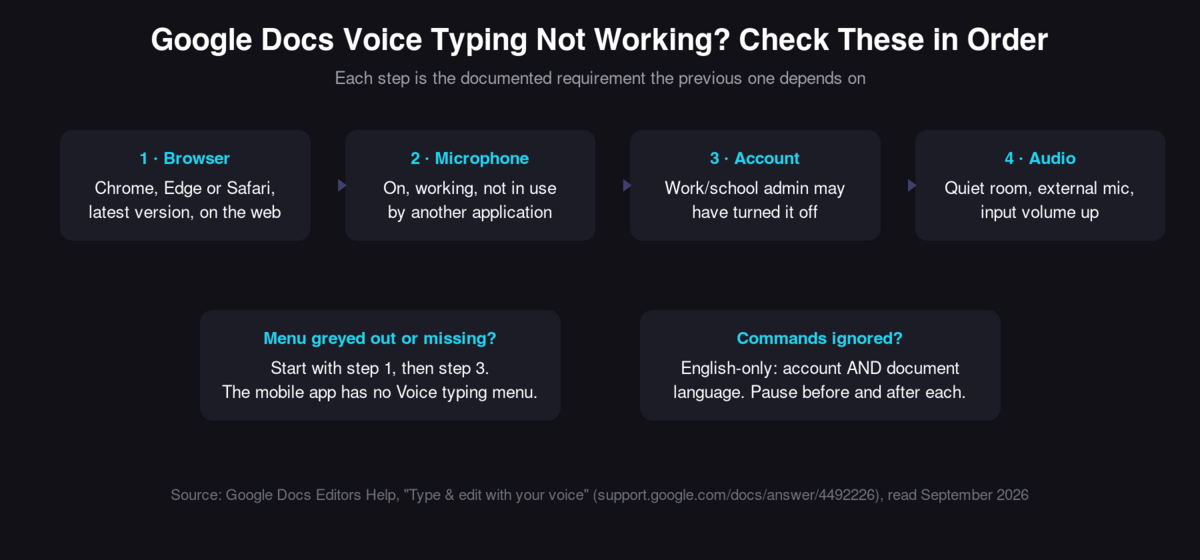
Each step is the documented requirement the previous one depends on. Source: Google Docs Editors Help.
- Browser. Voice typing needs the latest Chrome, Edge or Safari, on the web. In Firefox, Brave, or an older version, the menu item won't work. This is the first thing to rule out when the menu appears greyed out (Google Docs Editors Help).
- Microphone. Google's own troubleshooting: make sure the mic isn't broken, check it in your system settings, make sure it's plugged in and not in use by another application, and restart the computer if needed (Google Docs Editors Help). Also check that microphone access for docs.google.com hasn't been blocked at the site level in your browser — this isn't in Google's steps, but it's a common browser-permission setting worth ruling out.
- Account restrictions. On a work or school account, the feature may have been turned off by an administrator (Google Docs Editors Help). If the menu is greyed out on your work account but fine on a personal one, that's the cause, and only the admin can change it.
- Audio quality. If you see "We're having trouble hearing you," Google's advice is to move to a quiet room, plug in an external microphone, and turn up the input volume (Google Docs Editors Help).
If voice typing is on but commands are ignored, that's a separate problem with a separate fix: set the document language (File → Language) and your account language to English, speak the command slowly, and pause before and after it. The cross-platform version of this checklist is in our guide to voice typing on every device.
Why is Google Docs voice typing greyed out?
In Google's troubleshooting order the browser comes first: switch to the latest Chrome, Edge or Safari. If it's still grey on a managed work or school account, an administrator has switched the feature off and only they can turn it back on. The menu doesn't exist in the mobile app, so on a phone it isn't greyed out — it's absent.
What Google Docs Voice Typing Won't Do
It types what you say, word for word. That's the design, and for short notes or a first draft it's fine. It also means every "um", every restart and every abandoned sentence goes onto the page. Say:
so the intro should be shorter, um, actually let's cut the second paragraph entirely, no wait, keep it but move it to the end
and that is exactly what appears. Docs voice typing has no idea what you meant, only what you said. Cleaning that up afterwards is the editing pass that eats most of the time you saved — the cleanup is the real problem, not the capture.
There are two ways around it. For quick pieces, dictate in short, complete sentences and say your punctuation. For anything longer, use a tool built to restructure speech into finished prose as you talk. RambleFix is one; it works in Docs on the Mac because it types into whatever field has focus. From the ramble above it returns "Shorten the intro and move the second paragraph to the end" instead of the transcript. Start with what's built in, and move up only when the editing is costing you more than the typing would have.
Frequently Asked Questions
What is the keyboard shortcut for voice typing in Google Docs?
Ctrl + Shift + S on Windows and ChromeOS, ⌘ + Shift + S on a Mac. Google lists it as available in Chrome browsers; in Edge and Safari use Tools → Voice typing.
Does Google Docs voice typing work offline?
Google's documentation describes the feature for the web with the browser handling speech-to-text, and does not describe an offline mode. Treat it as requiring a connection. If you need offline dictation, Mac Dictation and iPhone Dictation process supported languages on the device and will type into a Docs document in the browser or app.
Can I use Google Docs voice typing in other languages?
Yes for dictation — Google lists more than 100 languages and regional accents, from Afrikaans to Zulu, including many variants of English, Spanish and Arabic (Google Docs Editors Help). Voice commands, though, are English-only, and Google notes punctuation commands might not be available in every language.
Why doesn't voice typing appear in the Google Docs app on my phone?
Because Google documents it only for Docs on the web in Chrome, Edge or Safari. On Android or iPhone, tap the microphone on your keyboard instead; the text goes into the document the same way.
Is voice typing the same as text-to-speech in Google Docs?
No. Voice typing is Google Docs' speech to text: you talk, Docs types. Text-to-speech reads the document aloud, and in Docs that's done through a screen reader or a browser extension rather than the Voice typing menu.
Is Google Docs voice typing free?
Yes. It's included with Google Docs on any Google account, personal or Workspace, with no usage limit documented. The only cost is that a Workspace administrator can switch it off.
The Short Version
- Turn on: Tools → Voice typing, or Ctrl/⌘ + Shift + S in Chrome. Chrome, Edge or Safari on the web.
- Punctuate: say it — "period", "comma", "new paragraph".
- Edit by voice: "Select paragraph", "Delete last word", "Bold", "Apply heading 2", "Undo". English only — File → Language for the document.
- Phone: no menu; use the keyboard microphone.
- Greyed out: wrong browser, or a work-account admin turned it off.
- Silent: microphone off, blocked, or in use by another app.
If what you want at the end is a finished paragraph rather than a transcript, that's a different tool's job — you can try RambleFix free and see the difference in one dictation.
Related Guides
- Voice typing: the complete 2026 guide — Windows, Mac, iPhone and Android, plus how fast and accurate it really is.
- How to dictate on Mac — Apple's Dictation, which types into Google Docs too.
- How to turn voice notes into text — when you have a recording rather than live speech.
- Voice notes aren't the problem. The cleanup is. — why a perfect transcript still isn't writing.